
Do managers of a Google listing receive review notifications!
Why Timely Review Notifications Matter for Business Success
Do managers of a google listing receive review notifications? Yes, managers of Google Business Profile listings can receive review notifications, but the settings are specific to each individual’s Google account rather than automatically granted to all managers.
Quick Answer:
- Yes – Managers can receive review notifications if properly configured
- Individual Settings – Each manager controls their own notification preferences
- Multiple Channels – Notifications arrive via email and mobile apps
- Customizable – You can choose which types of alerts to receive
- Account-Specific – Settings tied to your Google account, not the business profile
When customers leave reviews, timing matters. A Harvard Business Review study found that replying to customer reviews results in better ratings and increased trust. But you can’t respond to what you don’t know exists.
Many business owners mistakenly assume that being a manager automatically means they’ll get alerts for new reviews. That’s not the case, as Google’s notification system requires specific setup. Missing these notifications means missing opportunities to engage customers, address concerns, and build your online reputation.
I’m Guy Leon, founder and CEO of Guac Digital. Through years of managing Google Business Profiles and helping businesses understand do managers of a google listing receive review notifications, I’ve seen how proper notification setup can transform a company’s online reputation management.
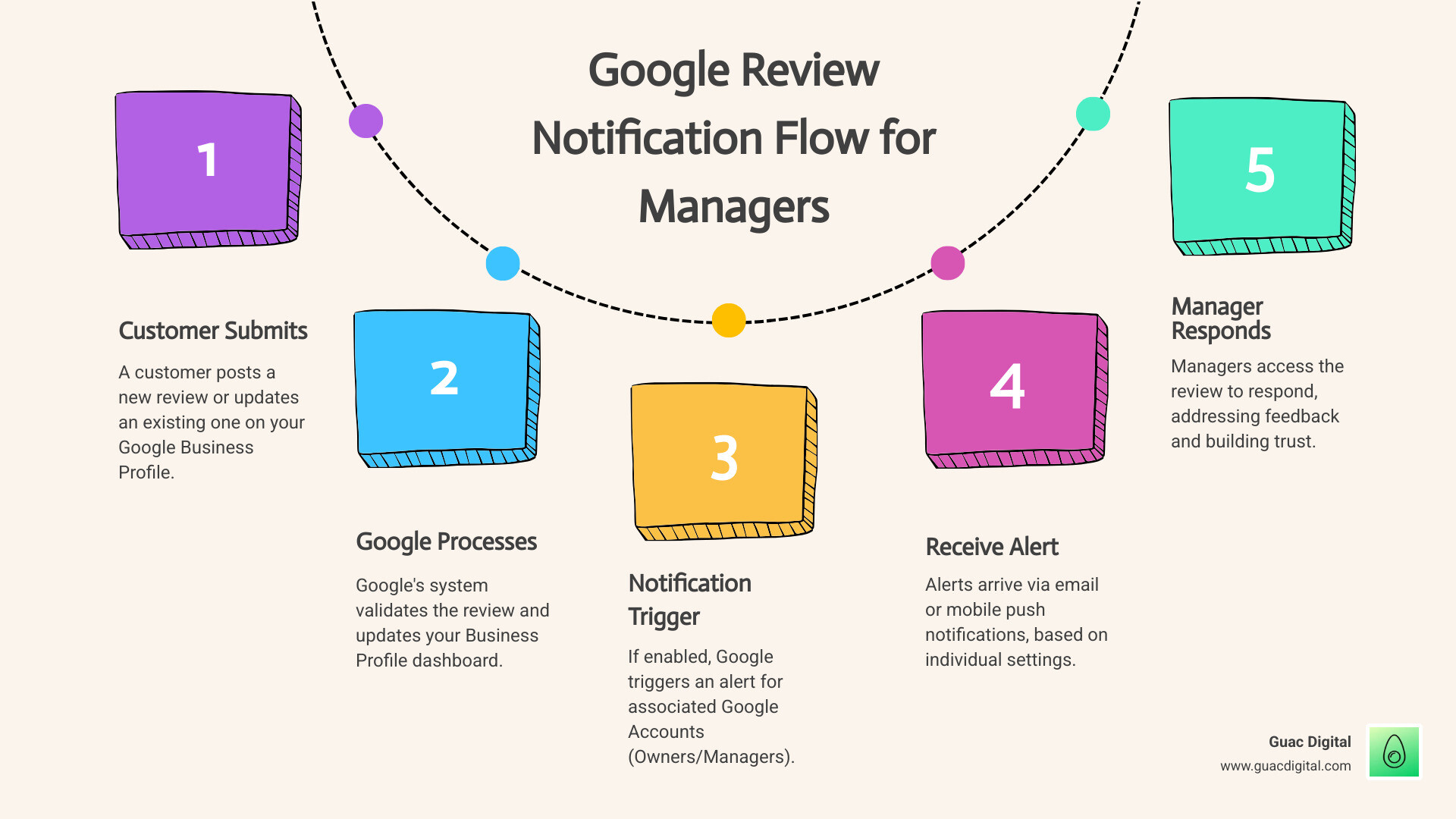
Yes, Managers Receive Review Notifications—Here’s How It Works
Do managers of a Google listing receive review notifications? Absolutely. However, Google treats each manager as an individual with their own personalized notification setup. Each manager on a profile must configure their own alerts through their personal Google account. There’s no master switch for the whole team. This user-specific approach allows each person to customize what they receive without flooding everyone else’s inbox.
Google makes this clear in their own words: “Notifications can help you know when customers leave photos or reviews on your Business Profile.” They’ve designed this system to keep you connected with your customers while offering flexibility.
The settings are managed in your Google Business Profile and are tied directly to your individual Google account. Both owners and managers have the same control over what notifications they receive and how.
Email alerts are the most common method, sending a message to the email address connected to your Google account. It’s straightforward and reliable.
For those on the go, mobile push notifications through the Google Maps app are a game-changer, delivering alerts almost instantly to your phone. It’s especially handy when you’re out and about but still want to stay on top of customer feedback.
The beauty of this user-specific settings approach is that it puts control in your hands. You can choose to receive every notification or only specific ones, like reviews, without affecting the settings of other managers.
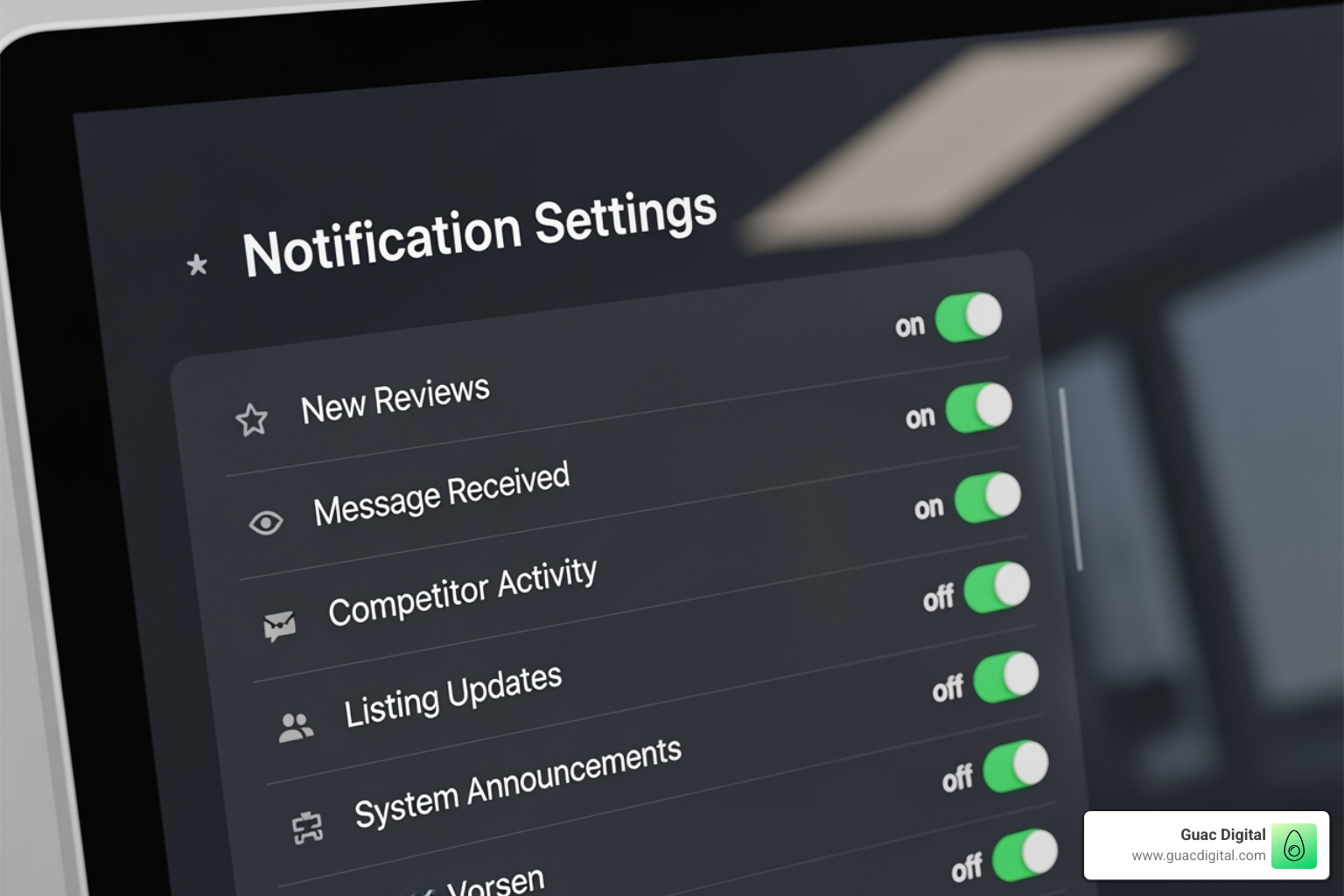
How to Manage and Customize Your Google Review Notifications
Knowing that managers can receive notifications is the first step; the next is setting them up. Customizing your alerts ensures you stay informed without being overwhelmed. Google provides options for both desktop and mobile users.
Managing Notifications on Desktop (via Google Search)
Managing email notifications is most easily done on a desktop through Google Search. This is where you’ll find the most comprehensive settings.
Here’s a step-by-step guide to get those review notifications flowing to your inbox:
- Sign In: First, sign in to the Google account you use to manage your Google Business Profile.
- Search for Your Business: In Google Search, type in your exact business name to bring up your Business Profile panel.
- View Profile: If it doesn’t automatically show the management interface, look for an option like “View profile” or “Edit profile.”
- Access Menu: In your Business Profile management area, click the menu icon (often three vertical dots).
- Email Notifications: From the dropdown menu, select “Email notifications.”
- Toggle On/Off: Find the “Customer reviews” option and ensure the toggle switch is “On.” You can also enable other valuable alerts, such as customer messages and Q&A updates.
By following these steps, you’ll ensure an email lands in your inbox for every new review. For direct access, you can always Go to your Business Profile to manage settings.
Managing Notifications on Mobile (via Google Maps App)
For convenience, you can manage push notifications directly from the Google Maps app on your mobile device.
Here’s how to manage your notifications via the Google Maps app:
For Android devices:
- Open Google Maps App: Launch the application on your Android smartphone.
- Tap “Business”: At the bottom right, tap the “Business” tab.
- Tap “Notifications”: In the top right corner, tap “Notifications” to access your settings.
For iPhone or iPad devices:
- Open Google Maps App: Launch the application on your iOS device.
- Tap “Business”: Tap the “Business” tab at the bottom right.
- Tap “Notifications”: Find and tap “Notifications” at the top right.
Once in the notification settings, you can customize which push notifications you receive, including alerts for new reviews, photos, and followers. Make sure your preferred notifications are toggled on. You can manage your notifications on mobile devices via this link: Manage your notifications on mobile devices.
What Types of Notifications Can You Control?
Beyond reviews, you can control alerts for many other profile activities. Understanding these categories helps you tailor notifications to your business needs.
Here’s a breakdown of the common notification types you can control:
- Customer reviews: Alerts when customers leave new ratings or written feedback.
- Customer photos: Get notified when users upload new photos to your Business Profile.
- Profile update suggestions: Google often receives suggestions to update your business information. These notifications let you approve or reject them.
- New followers or bookings (mobile only): If customers follow your business or make bookings, you can get mobile-specific notifications.
- Account updates: Important information regarding your account, such as verification status changes or policy updates.
- New feature updates: Information about new tools or functionalities available within Google Business Profile.
By customizing these toggles, you can create a notification system that works best for your operational needs.
Troubleshooting: What to Do When Notifications Go Wrong
Even with a perfect setup, you might still miss alerts. If you’re wondering why do managers of a Google listing receive review notifications if something’s broken, let’s troubleshoot the most common issues.
Why am I not receiving review notifications?
If you’re missing review notifications, here are the most likely causes.
First, revisit your notification settings. This simple step fixes most issues. A browser refresh or app update can sometimes toggle settings off. Double-check both your desktop and mobile settings.
Next, check your spam folder. Email providers like Gmail or Outlook occasionally flag legitimate Google Business Profile emails as spam. If you find them there, add Google’s notification emails to your safe sender list.
Account confusion is another culprit. Notifications only go to the specific Google account that manages the Business Profile. Ensure you’re logged into the correct account.
Also, be aware that notification delays are normal. The system isn’t always instant, and sometimes Google sends alerts in batches. You might see several review notifications arrive together hours after they were posted.
Account verification status also matters. Unverified profiles often have limited notification capabilities. Ensure your Business Profile is verified.
If you’re still stumped, our guide on Missing Google Reviews? A Step-by-Step Recovery Guide covers more advanced troubleshooting.
What if my Google Business Profile is suspended?
A strange but common issue is receiving notifications for a suspended Google Business Profile. This can happen when Google’s notification system operates independently of the profile’s active status, especially during a soft suspension. You might receive review alerts even for a profile you can no longer manage.
This often occurs because your listing, while removed from your dashboard, may still exist in an unverified state on Google Maps. The system remembers the previous connection and continues sending alerts.
The suspension type matters. A hard suspension typically cuts off all notifications, but soft suspensions pending appeal often leave the notification pipeline active. The owner versus manager roles can also add complexity, as one user might lose access while another continues to receive alerts.
If you’re getting notifications for a suspended profile, it can be a positive sign that Google still recognizes your connection, which may help with reinstatement. For more on policies, see Google’s official documentation: More on GBP policies and guidelines.
How do I stop notifications for unverified businesses?
If you’re receiving unwanted notifications for profiles you no longer manage, such as unverified or old listings, the solution is to remove them from your account. This tells Google you’re no longer interested in that listing and stops the notification flow.
This issue often arises when managing multiple locations or dealing with unclaimed listings that were auto-generated by Google. To fix this, go to your Google Business Profile dashboard, identify the listings you no longer want, and use the option to remove or unclaim them.
This account cleanup improves your management experience by letting you focus on the listings that truly impact your business. It only affects profiles you’ve claimed but don’t actively manage; you’ll still receive notifications for your verified, operational businesses.
Do managers of a Google listing receive review notifications and other alerts?
Yes, managers receive review notifications, but that’s just the beginning. Your Google Business Profile is a dynamic storefront, and Google sends alerts for many types of updates to help you maintain profile accuracy. Google sends out alert emails to the managers and owners on the listings when something has been updated in your Google listing, so make sure to check that email account regularly.
These alerts cover everything from suggested edits to your hours and phone number to new customer photos and questions, helping you stay on top of your online presence without constantly refreshing your dashboard.
Do managers of a Google listing receive review notifications vs. profile edit notifications?
Understanding the difference between review notifications and profile edit notifications is crucial for reputation management. While do managers of a Google listing receive review notifications for customer-generated content like reviews, profile edit notifications is more complex.
Anyone can suggest changes to your business listing, from a helpful customer to Google’s own AI. Google now sends email notifications to Google My Business page managers when there is a suggested edit to their listing, a major improvement that helps prevent unauthorized changes from going live without your knowledge.
These suggestions can come from public users, Google’s AI, third-party management platforms like Yext or Birdeye, or even other owners and managers on your listing.
However, these notifications don’t always make it through. That’s why maintaining data consistency requires more than just waiting for alerts. Regular manual checks of your profile remain a best practice, especially for critical information like business hours and contact details.
Do managers of a Google listing receive review notifications if a customer edits their review?
One of the system’s inconsistencies is with edited reviews. While you get an alert for a new review, the situation is different when a customer updates their existing feedback.
Google typically does not send a separate notification specifically for review edits. The primary alert happens when the review first goes live. This means if a customer changes a two-star review to five stars after you’ve resolved their issue, you might never know unless you’re actively monitoring your reviews.
This notification gap is likely due to the sheer volume of edits and system priorities favoring new content. It highlights why manual checks are essential for comprehensive reputation management. This is also why many businesses use specialized reputation management software from providers like Podium or BrightLocal, which can track review edits more reliably across multiple platforms, including Google, Yelp, and Facebook. It’s particularly important to revisit negative or neutral reviews after you’ve had follow-up interactions with those customers.
The best practice is not to rely solely on automated alerts for maintaining engagement. Set aside time weekly to review recent feedback and look for positive changes.
Frequently Asked Questions about Google Review Notifications
After helping hundreds of businesses set up their Google Business Profile notifications, I’ve noticed the same questions pop up again and again. Let me share the answers to the most common ones.
Can multiple managers on one Google Business Profile receive review notifications?
Yes. Notification settings are tied to an individual’s Google account, not the business profile. This means each manager can customize their own alert preferences (email, mobile, or both) without affecting others on the team. This flexibility allows different roles, like a marketing manager and an operations manager, to receive the specific notifications relevant to them.
Are Google review notifications instant?
Not always. While many notifications arrive quickly, there can be delays, and sometimes Google sends alerts in batches. Because the system isn’t always instant, it’s a best practice to manually check your Google Business Profile daily. This ensures you catch any delayed or missed alerts, which is crucial for businesses where timely responses are key to customer service. This is also a key reason businesses invest in third-party reputation management tools from companies like Birdeye or Podium, which aggregate reviews from Google, Yelp, Facebook, and other sites into a single dashboard for more reliable monitoring.
Will I be notified if I report a review?
The process has two parts. First, the reviewer is not notified that you reported their review; the process is confidential. Second, you will receive an email from Google with their decision on whether to remove the review. This decision email typically arrives in three to five business days.
While you won’t get an immediate confirmation of your report, you will be notified of the final outcome. Keep an eye on your inbox for their response. Google’s removal standards are strict and focus on policy violations, not just negative opinions.
Conclusion: Take Control of Your Online Reputation
So, do managers of a google listing receive review notifications? Yes, and now you know how to take control. Understanding the technical setup is just the start of effective online reputation management.
Think of notifications as your early warning system. Without them, you’re missing opportunities to connect with customers when it matters most.
Proactive management is key. Responding quickly to all reviews—whether on Google, Yelp, or Facebook—shows potential customers you care and are engaged. This customer engagement doesn’t just make individuals feel heard; it signals to platforms like Google that your business is active, which builds trust with both customers and search algorithms.
At Guac Digital, we’ve seen businesses transform their online presence by getting their notification system right. Combining proper alerts with strategic responses allows you to actively shape your brand’s perception. It’s a small change that delivers big results.
Ready to take your local presence to the next level? Our Local Booster services are designed specifically for businesses like yours who want to dominate their local market. We know that every review is an opportunity, and we’ll help you capitalize on each one.
For businesses serious about local growth, check out our comprehensive guide on Local SEO for Small Business. Because when you combine smart notification management with strategic local SEO, that’s when your business really starts to shine in your community.